
Web apps today launch more rapidly than ever, and there is no way manual regression tests will be able to cope with their rapid deployment that occurs on a weekly or daily basis. And precisely that is the issue that test automation has been created to solve, and among all the solutions that have emerged as candidates for quality assurance engineers’ consideration in recent years, Playwright is one of them.
This tutorial gives you a tour of what Playwright is, why organizations choose it, how it differs from Selenium, which came before it, and how to configure your first Playwright project. Whether you’re a QA engineer trying to learn Playwright examples or consider using Playwright as your next Playwright automation tool, hopefully this tutorial provides you with enough knowledge to get started. If you have no previous experience in software testing, then the Software Testing Course in Chennai is what you need.
Before diving into test automation tools like Playwright, it helps to understand where automation fits into the bigger picture. Learn how manual and automated testing come together across a project’s lifecycle by reading “What Is the Software Testing Life Cycle? A Complete Guide.“
What Is a Playwright?
What then is Playwright automation? It simply involves the use of the Playwright framework to drive actual browsers through your application, clicking on buttons, filling forms, and verifying pages in the way that a human tester would.
The Playwright automation library itself is an open-source browser automation library provided by Microsoft. In contrast to older browser automation frameworks, which communicate through a standard browser driver protocol, Playwright uses the automation protocol built into the browser itself (for example, the Chrome DevTools Protocol for the Chromium browser).
A few things make Playwright stand out immediately:
- One API, three browser engines. Chromium, Firefox, and WebKit browsers are controlled using the same API, meaning you only need one test suite to cover the relevant browsers in your user base.
- Multi-language support. Write tests using JavaScript, TypeScript, Python, Java, and .NET; it is compatible with whatever tech stack you use. Since Playwright’s Java bindings are a popular choice for teams already invested in the JVM ecosystem, brushing up on the language itself can make the transition smoother. Our Java Training in Chennai covers the fundamentals you’ll need before writing your first Playwright test in Java.
- Built for modern web apps. Single-page applications and dynamic DOM updates, as well as shadow DOM components, are native to TestCafe.
Build job-ready QA skills with our Software Testing Course.
Enrol NowWhy QA Teams Are Moving to Playwright
If you’re still asking what Playwright automation is good for in practice, the honest answer is: a lot. It’s easy to list features, but what actually convinces a QA team to migrate to Playwright as their primary playwright automation tool is how it behaves during real, everyday testing. Here’s what tends to matter most in practice.
1. Auto-Waiting Eliminates a Whole Class of Flaky Tests
The most frequent cause of failure of automatic tests is not a defect, but rather a matter of timing. There is an element in the DOM, but it is not yet available, or there is a button on the screen but it is not yet clickable. Actions of Playwright automatically wait until an element becomes actionable, eliminating the need for sleep() and explicit waits that were always required previously.
2. Rich, Reliable Selectors
Playwright allows us to use CSS and XPath selectors, although it is also recommended to make our tests less brittle by using selectors such as text content, ARIA roles, and test IDs. This is important since selectors based on accessibility and visible text are much less prone to failure compared to those based on the specific CSS class.
3. True Test Isolation
Each test can execute in its own browser context, which is a brand-new browser profile with its own cookies, storage, and cache. Tests are thus unable to interfere with each other by leaking their state, and you can perform parallel testing without having to worry that some test’s session will affect the assertion of another test. Learn about browser contexts at our Playwright Training in Chennai.
4. Native Mobile Web Emulation
Playwright can mimic mobile viewports, touch, geolocation, and permissions right from the browser. This is helpful for testing mobile responsiveness and mobile web experience without requiring a physical device lab for every test.
Playwright’s mobile web emulation is useful for responsive testing, but it doesn’t replace native app testing on real devices. If your team also ships mobile apps, our Mobile Testing Training in Chennai covers native and hybrid app testing in more depth.
5. Debugging Tools That Don’t Feel Bolted On
Tracing of the tests, screenshotting on test failures, and even recording videos of test runs come with the framework itself without the need for external add-ons. If a test fails in CI, you normally get to know why in just a couple of minutes.
Go from manual to automated testing with our Selenium Testing Course.
Enrol Now
Playwright vs. Selenium: A Quick Comparison
Selenium is still widely used, and it isn’t going anywhere, but the two tools solve the problem differently. Here’s a side-by-side look at how they compare on the dimensions QA engineers usually care about.
|
Aspect |
Playwright |
Selenium |
|
Communication with browser |
Native browser protocols (direct) |
WebDriver protocol (extra abstraction layer) |
|
Waiting strategy |
Auto-waits for actionability by default |
Requires explicit/implicit waits to be configured |
|
Parallel execution |
Built into the test runner |
Needs Selenium Grid or third-party orchestration |
|
Network interception |
Native support for mocking and intercepting requests |
Requires additional libraries/proxies |
|
Debugging |
Built-in trace viewer, screenshots, video |
Typically needs external tooling |
|
Mobile browser emulation |
Built-in viewport/device emulation |
Requires Appium for real mobile automation |
|
Language support |
JS/TS, Python, Java, .NET |
JS, Python, Java, C#, Ruby, and more |
Selenium’s biggest advantage is maturity: it has a massive ecosystem, long-standing community support, and works with virtually every browser and driver combination in existence. Playwright trades some of that breadth for a tighter, faster, more batteries-included experience on modern browsers. If you’d like to build hands-on skills with the older, more established tool as well, check out our Selenium Training in Chennai.
Even as newer tools gain ground, Selenium remains widely used across the industry, which keeps demand for skilled testers strong. If you’re curious how this plays out for your career, it’s worth reading up on the “Career Scope Of Selenium Testing” before deciding which tool to specialize in first.
Getting Started: Setting Up Your First Playwright Project
Let’s move from theory to practice. Setting up your Playwright automation tool for the first time only takes a handful of steps, and here’s how to get a working Playwright project running from scratch.
Prerequisites
Before you begin, make sure you have:
- Node.js (LTS version recommended) installed on your machine.
- A code editor. Visual Studio Code is the most common choice for Playwright projects.
You can confirm Node.js is installed correctly by running:
bash
node-v
npm-v
If both commands return version numbers, you’re ready to move on.
Step 1: Create a Project Folder
bash
mkdir playwright-demo
cd playwright-demo
Step 2: Initialize Playwright
bash
npm init playwright@latest
This command walks you through a short setup wizard, asking:
- Whether you want to use JavaScript or TypeScript
- Whether to add a GitHub Actions workflow for CI
- Whether to install browser binaries right away
Once it finishes, your project will contain:
- tests/: your test spec files
- playwright.config.js (or .ts): the central configuration file for browsers, timeouts, and reporting
- package.json: your project’s dependencies and scripts
Step 3: Install Browser Binaries
Even if you already have Chrome or Firefox installed on your machine, Playwright uses its own bundled, version-pinned browser binaries to guarantee consistent test behavior:
bash
npx playwright install
Step 4: Write Your First Test
Create a new file inside tests/, for example login.spec.js, and add a simple test scenario: navigating to a site, attempting a login with invalid credentials, and verifying an error message appears.
This example uses JavaScript, but if you’d rather work in Python, the same test logic applies almost line for line using Playwright’s Python bindings. Our Python Training in Chennai is a solid starting point if you want to build that foundation first.
javascript
const { test, expect } = require('@playwright/test');

test('shows an error for invalid login credentials', async ({ page }) => {
  await page.goto('https://example.com/login');

  await page.click('text=Sign In');
  await page.fill('#email', 'testuser@example.com');
  await page.fill('#password', 'incorrect-password');
  await page.click('button[type="submit"]');

  const errorMessage = page.locator('.error-message');
  await expect(errorMessage).toBeVisible();
});
These are a fairly typical structure of Playwright examples: navigate, interact, assert. Notice there’s no manual wait before checking toBeVisible(), Playwright’s web-first assertions handle that automatically.
Step 5: Run the Test
bash
npx playwright test login.spec.js --headed
The –headed flag opens an actual browser window so you can watch the test execute, which is useful while you’re still building confidence in a new suite. Drop the flag once you’re ready to run tests headlessly in CI.
Step 6: Review the Test Report
bash
npx playwright show-report
This opens an interactive HTML report showing which tests passed or failed, along with any captured screenshots, traces, or console logs. It’s genuinely useful when debugging a failure that only shows up in CI. Once you’re comfortable running and reading test reports, our REST API Testing Training in Chennai shows you how to extend the same skills beyond the browser to backend and API layers.
Step 7: Run Tests in Parallel
Parallel execution is configured directly in playwright.config.js:
javascript
import { defineConfig } from '@playwright/test';

export default defineConfig({
  testDir: './tests',
  fullyParallel: true,
  workers: 4,
  use: {
    headless: true,
  },
});
Here, fullyParallel: true allows tests within a single file to run concurrently, and workers: 4 controls how many parallel worker processes Playwright spins up. Tuning the worker count to match your CI machine’s CPU cores is a simple way to cut suite runtime significantly.
Running Playwright tests in parallel is only half the picture, most teams also need them wired into a CI/CD pipeline to catch failures before release. Our DevOps Training in Chennai walks through building that pipeline from the ground up.
Best Practices for Playwright Test Automation
These habits will help you get the most out of Playwright as your primary Playwright automation tool. A few habits consistently separate stable, maintainable Playwright suites from flaky ones:
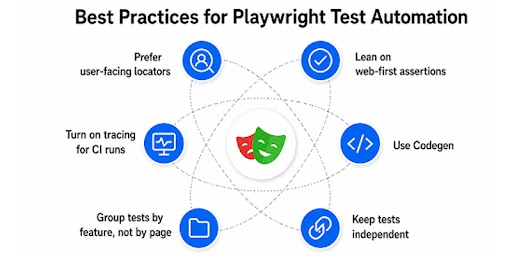
- Prefer user-facing locators. Favor roles, labels, and text over CSS classes or deep DOM paths, since they change far less often as the UI evolves.
- Lean on web-first assertions. Methods like toBeVisible() and toHaveText() retry automatically, so you rarely need manual timeouts.
- Use Codegen to bootstrap locators, not to finalize them.npx playwright codegen <url> is a great starting point, but review and clean up the generated selectors before committing them.
- Keep tests independent. Each test should set up its own state rather than depending on a previous test having run first.
- Turn on tracing for CI runs. The –trace flag captures a full timeline of each test, which turns “why did this fail in CI but not locally” into a five-minute investigation instead of an hour-long one.
- Group tests by feature, not by page. This tends to make suites easier to navigate as the number of specs grows.
If you’d like to see more Playwright examples like the login test above, the official Playwright documentation and community repos are a great next stop. If you’re also curious about keyword-driven testing as an alternative approach, ourRobot Framework Test Automation Training in Chennai course covers test libraries, keyword design, and building readable, maintainable test suites in detail.
Wrapping Up
Playwright has earned its popularity for good reason, and hopefully this guide has given you a solid introduction to Playwright automation testing. Auto-waiting, native multi-browser support, built-in parallelization, and genuinely useful debugging tools remove a lot of the friction that made older automation frameworks painful to maintain. As a Playwright automation tool, it’s particularly well suited to teams testing modern, JavaScript-heavy web applications that need fast, reliable cross-browser coverage.
Functional coverage with Playwright tells you the app works, but it doesn’t tell you how it holds up under load. Our JMeter Training in Chennai rounds out your testing skill set for that side of quality assurance. If this is your first time trying out test automation, then you’ll be most successful if you start by writing tests for a small number of key processes such as login, checkout, and search. As you consider what to learn next after reading this guide, take a look at our Software Testing Career Track, which combines software testing, Selenium, and Playwright into one learning path.
Master browser automation with our Playwright Course.
Enrol Now
